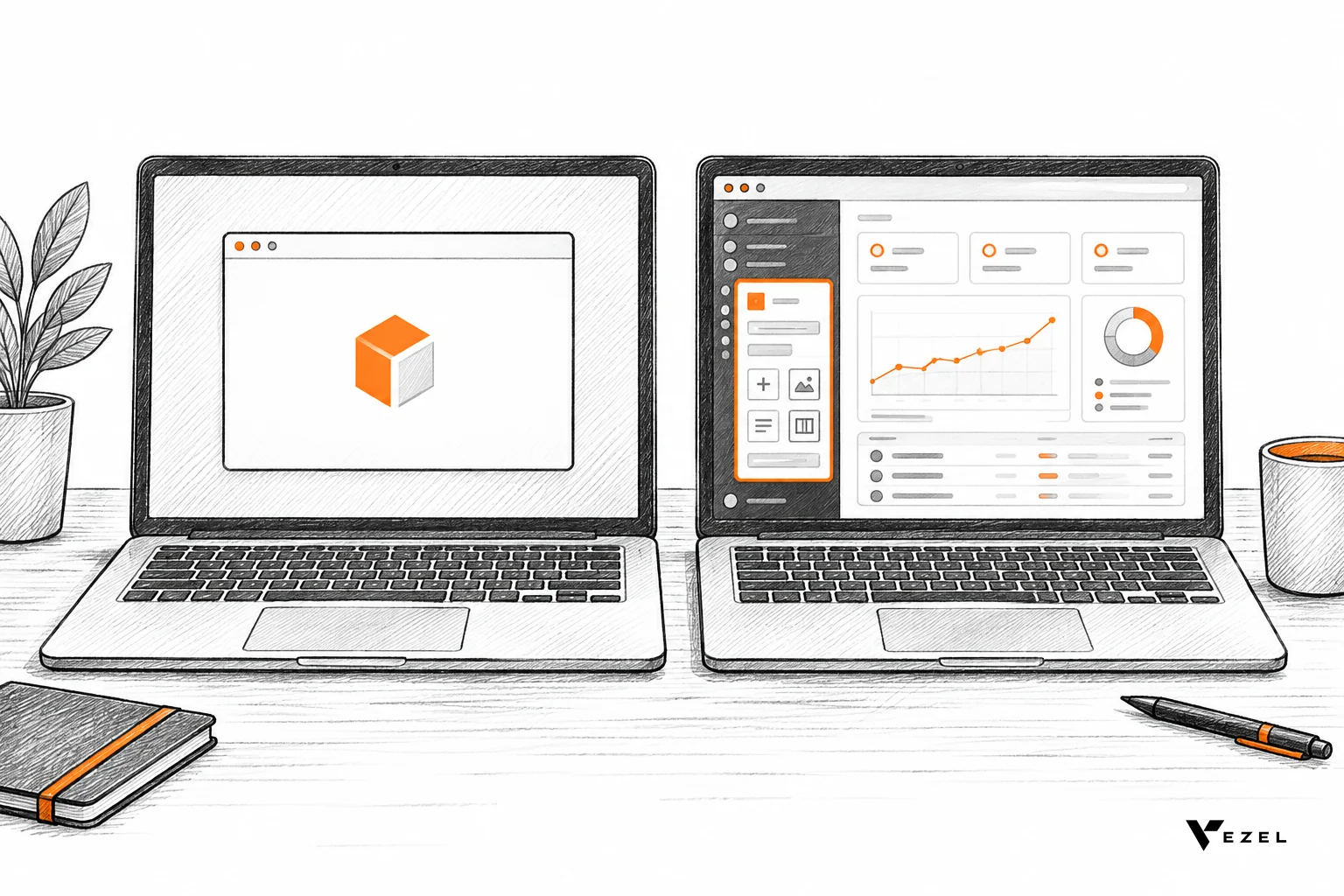



A white label dashboard is a reporting view that carries your customer's look, domain and data permissions instead of a vendor's, so it feels like part of your SaaS product. To offer one, you theme every surface, serve it from the right domain, inherit your existing row-level permissions, and ship templates that customers adapt themselves.
Key takeaways
- Branding goes deeper than a logo: Theme colors, fonts, product name, menus, help links, empty states, error screens and exports, or the seams show.
- Custom domains are optional for most: A tenant subdomain inside your app covers most customers; a fully custom domain is for portals and resellers.
- Never rebuild permissions: Dashboards should inherit your authentication, RBAC and row-level rules. A second copy of those rules will drift.
- Templates beat tickets: Ship a base template, let each customer adapt it, and approve changes from one control plane.
- Build, embed or generate: Build when dashboards are your product, embed for one fixed view set, generate when each customer wants something different.
White label dashboard at a glance
| Layer | What to do | Pass mark |
|---|---|---|
| Branding | Apply theme tokens, product name, labels, help links and export styling | No vendor name or default styling appears on any screen, including errors |
| Domain | Use a tenant subdomain, or a customer CNAME with TLS | Dashboard loads over HTTPS on the chosen hostname with no certificate warning |
| Row-level security | Inherit host authentication, RBAC and row rules | Two users with different access see different rows on one dashboard |
| Templates | Publish a base template; allow per-customer edits | A new customer gets a working dashboard with no engineering ticket |
| Governance | Control publishing, permissions and approvals centrally | Every customer-made dashboard has an owner and a lifecycle state |
| Build vs embed | Match the option to how much each customer's needs differ | You can name the one reason you picked it |
What counts as a white label dashboard?
A white label dashboard is a dashboard shown under your customer-facing brand, with no visible trace of the tool that built it. It inherits your login, permissions, navigation, colors and typography. Swapping a logo is not enough; the whole experience must read as one product.
The practical test is stricter than "can we change the logo?" Here is the test in plain words, which a white label analytics guide also covers: open the dashboard as a customer would, click everything, and look for any screen that does not feel like your product.
If you want the broader business model behind this, including reseller and OEM arrangements, read our explainer on how white label SaaS works. This article stays on the dashboard itself: what to configure, what to secure and how to choose a path.
1. Brand every surface, not just the logo
Start with a theme layer your dashboards read from: color tokens, font family, corner radius, spacing and chart palettes. Map those to your design system once. Then each customer's brand becomes a small set of overrides rather than a new build.
Here is the checklist we would run before showing any customer a dashboard:
- Product name: Page titles, tab titles and welcome text use your name or the customer's, never a tool's.
- Navigation and menus: The dashboard sits in your sidebar or top bar, with your icons and labels.
- Help destinations: Help links and support routes go to your docs and your support team.
- Edge states: Loading, empty, permission-denied and error views use the same wording and styling as the rest of the app.
- Exports and emails: PDFs, CSV headers and scheduled report emails carry the same branding.
- Chart language: Metric names match your customers' terminology, such as "accounts" versus "clients".
Pass mark: a person who has never heard of your dashboard tooling cannot find it by clicking around. Fail mark: any default font, vendor footer or generic error page. Fix those before launch, because enterprise buyers notice them in the first demo.
Where per-customer branding stops
Let customers change logo, primary color and name. Keep accessibility rules fixed: contrast ratios, focus outlines and chart colors that remain distinguishable. A customer with a pale yellow brand color should still get readable text. Build that guardrail into the theme layer so nobody has to police it by hand.
2. Set up custom domains for customer-facing dashboards
Most SaaS vendors should start with tenant subdomains, such as a customer name in front of your own domain. Add true custom domains only when a customer embeds dashboards in its own portal or resells your product. Custom domains add DNS, certificate and cookie work that subdomains avoid.
A custom domain setup usually follows this order:
- The customer picks a hostname they control, such as a reporting subdomain of their own site.
- They add a CNAME record pointing it at the hostname you give them, plus any verification record you require.
- You check DNS ownership, then issue and renew a TLS certificate for that hostname automatically.
- You route requests on that hostname to the right tenant and theme.
- You confirm the dashboard loads over HTTPS and that sign-in works end to end.
Two failure modes deserve a plan. First, DNS changes can take time to spread, so show a clear "pending verification" status instead of a broken page. Second, certificate issuance can fail if the record is wrong; surface the exact record the customer needs to fix, and keep the default hostname live as a fallback.
The catch is authentication. If the dashboard lives on a different domain from your app, session cookies from your main domain will not travel with it. That is one more reason to keep dashboards inside your product when you can: the user is already signed in, and the host's rules apply without extra plumbing.
3. Lock down row-level data security
Row-level security means each user sees only the rows their role and account allow, even on a shared dashboard. The safest approach is to inherit the permissions your product already enforces, rather than rewriting them inside a separate reporting layer where they can quietly fall out of sync.

Governance guidance for dashboards generally lists the same three controls: who can create, edit or delete dashboards, which data sources they can reference, and how audit and retention apply. Treat these as governance settings. Row-level rules sit underneath all of them.
This is how Vezel handles it. Extensions connect to your product's APIs and data models with a zero-footprint setup, and they inherit your existing authentication, permissions and access controls. A dashboard generated for a customer asks your APIs for data as that user, so it cannot return rows the user could not already see in your app.
Test it before a customer does
Run these four checks with real test accounts. Each has a pass mark and a stop sign.
- Same dashboard, two roles: A regional manager and an admin open one dashboard. Pass: row counts differ and match what each sees in the main app. Stop: any extra row.
- Cross-tenant URL swap: Paste a dashboard link from tenant A while signed in as tenant B. Pass: access denied or not found. Stop: any data renders.
- Export parity: Download the CSV and PDF. Pass: same rows as the screen. Stop: the export includes filtered-out rows.
- Revoked access: Remove a user's permission, then reload. Pass: the dashboard reflects it right away, with no stale cache. Stop: old data still shows.
If a check fails, do not patch it with a dashboard-side filter. Trace it back to where the data is requested, and make that call use the user's own identity. Filters bolted on afterward are how leaks happen.
4. Offer per-customer templates without per-account engineering
Per-customer templates work when you separate three layers: a base template you maintain, vertical variants for common use cases, and customer-level edits that live only in that customer's account. Customers change the third layer themselves, so nobody opens an engineering ticket for a new column or chart.
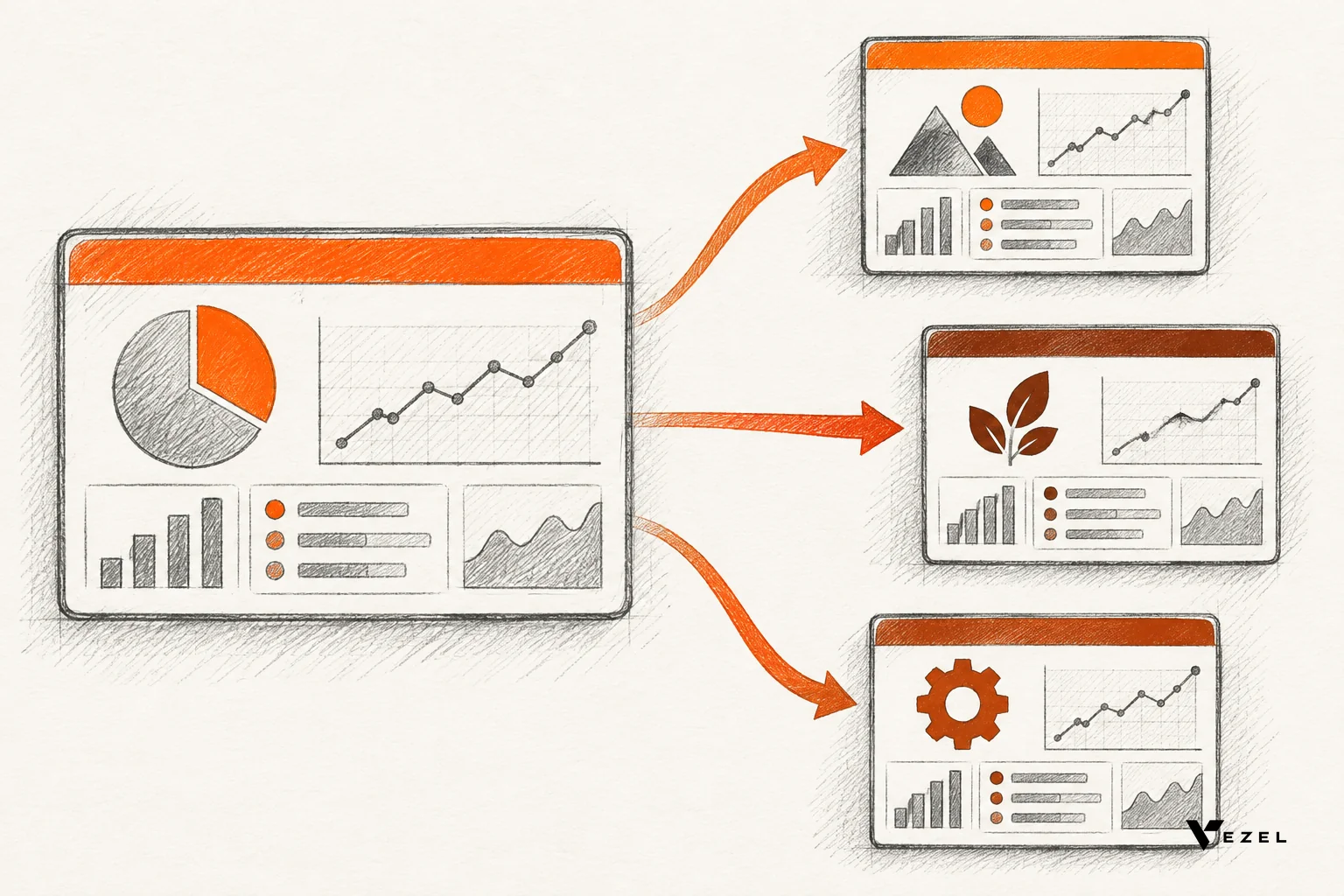
Consider a hypothetical vendor with a base "account overview" dashboard. One customer wants renewals grouped by region, another wants the same data grouped by industry, and a third wants its own metric names. With layered templates, each customer adapts the base in its own workspace. The vendor ships nothing new.
Vezel supports this by letting customers describe a dashboard in plain English, then generating it on live data inside the product. Examples from our own use cases include customer health dashboards and renewal workspaces for CRM teams, supplier scorecards and inventory dashboards for ERP, and technician scorecards for field service. Generated work picks up your design system, so it matches the white-label theme from step one.
Keep customer-made dashboards governed
Freedom without control creates a support problem. A central control plane should manage publishing, permissions, approvals and each extension's lifecycle. Decide up front who can share a dashboard beyond its creator, who approves a template promoted to the whole account, and how retired dashboards are archived.
Our view: start with approvals on for anything shared beyond one person, and loosen later based on what you see. The open question is how much freedom end users want. That differs by customer, and we would not guess it without a pilot. Our guide to building custom dashboards inside your SaaS covers the creation workflow in more depth.
5. Build vs embed: which fits?
Build natively when dashboards are central to your product and you have a team to maintain them. Embed a third-party analytics tool when you need one fixed set of views fast. Generate native extensions when every customer wants different dashboards. The deciding factor is how much customers' needs differ.
| Factor | Build natively | Embed third-party BI | Generate with Vezel |
|---|---|---|---|
| Branding depth | Total control | Depends on the tool; check every screen | White-labeled to match your design system |
| Row-level security | You implement and maintain it | Must be mapped to your rules | Inherits your authentication, permissions and access controls |
| Per-customer variation | Each change needs engineering | Limited by the tool's templating | Customers create their own in plain English |
| Setup effort | Longest | Often quick for fixed views | Most SaaS platforms integrate in a few days |
| Best fit | Reporting is your core product | Same few views for every tenant | Every customer wants something different |
A decision rule you can use
Ask one question: if you listed what your ten largest customers want on their dashboards, how much overlap is there? High overlap points to build or embed. Low overlap points to generation, because you would otherwise code ten variations of the same view.
Embedding is the right call more often than vendors admit. If you need a standard set of views live next quarter and your customers do not ask for changes, a tool dropped into your app does the job. We compare one popular route in Metabase embedding versus native embedded dashboards.
Go the other way if you see signs of workarounds: customers exporting to spreadsheets, or asking for the same dashboard with small tweaks. That pattern means the fixed set is not enough. Generated, governed dashboards fit that gap better than another round of custom code.
6. Roll out a white label dashboard in order
For SaaS teams selling in the United States and other English-speaking markets, enterprise buyers will ask about branding and security in the same security review. Roll out in this sequence so those answers are ready.
- Audit your data access: List the APIs and permission rules dashboards will depend on. Gaps here become leaks later.
- Define the theme layer: Map your design system to tokens, and set the accessibility guardrails.
- Pick the domain model: Subdomain by default; custom domain only for customers who need it.
- Connect and inherit permissions: Link dashboards to your APIs so they run as the signed-in user.
- Publish base templates: Start with two or three that match your top use cases.
- Run the four security checks: Do not launch until every check passes.
- Pilot with a few customers: Watch which edits they make, then promote popular ones to templates.
You can see how this connects to live product data in how Vezel works: connect to your APIs, generate extensions from plain English, run them in a secure container, then scale and govern.
Frequently asked questions
What is the difference between white label and embedded dashboards?
Embedded means the dashboard appears inside your product. White label means it also carries your brand with no trace of the tool behind it. A dashboard can be embedded without being white-labeled, so check fonts, menus, error pages and exports before you call it white label.
Do I need a custom domain for every customer?
No. A tenant subdomain inside your own domain is enough for most customers and avoids certificate and cookie work. Offer custom domains only when a customer places dashboards inside its own portal, or when it resells your product under its own brand.
How do white label dashboards stay secure across customers?
They inherit the host product's authentication, permissions and row-level rules, so every request runs as the signed-in user. With Vezel, extensions inherit your existing authentication, permissions and access controls. Verify it with cross-tenant, export and revoked-access tests before launch.
Give every customer a dashboard that looks like yours
A white label dashboard earns its keep when it looks native, respects every permission and lets customers shape their own views without a ticket. Vezel generates branded, permission-aware dashboards inside your product, governed from one control plane. If you want to see this running on a demo account of your own, book a Vezel demo and we will respond within 1-2 business days.