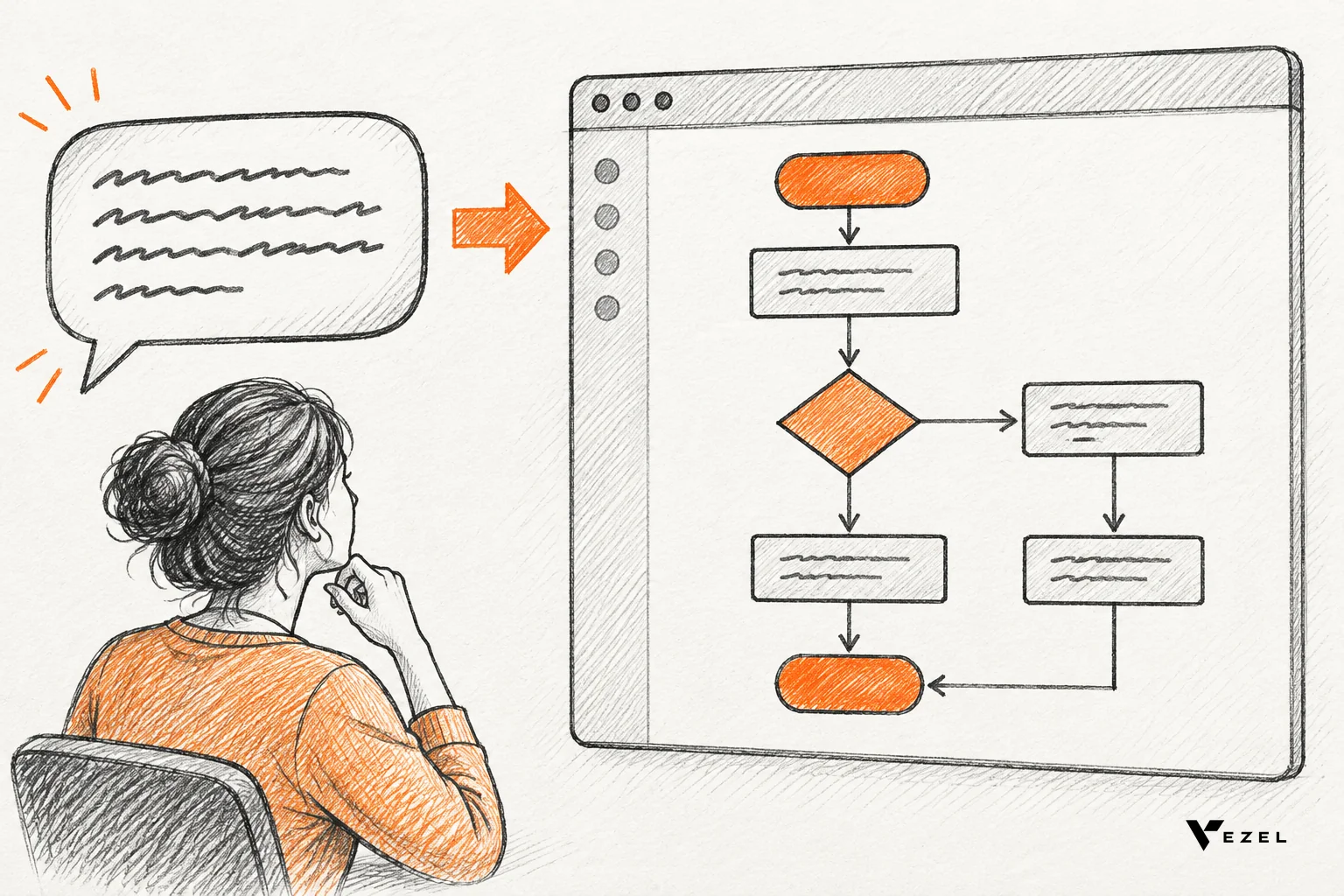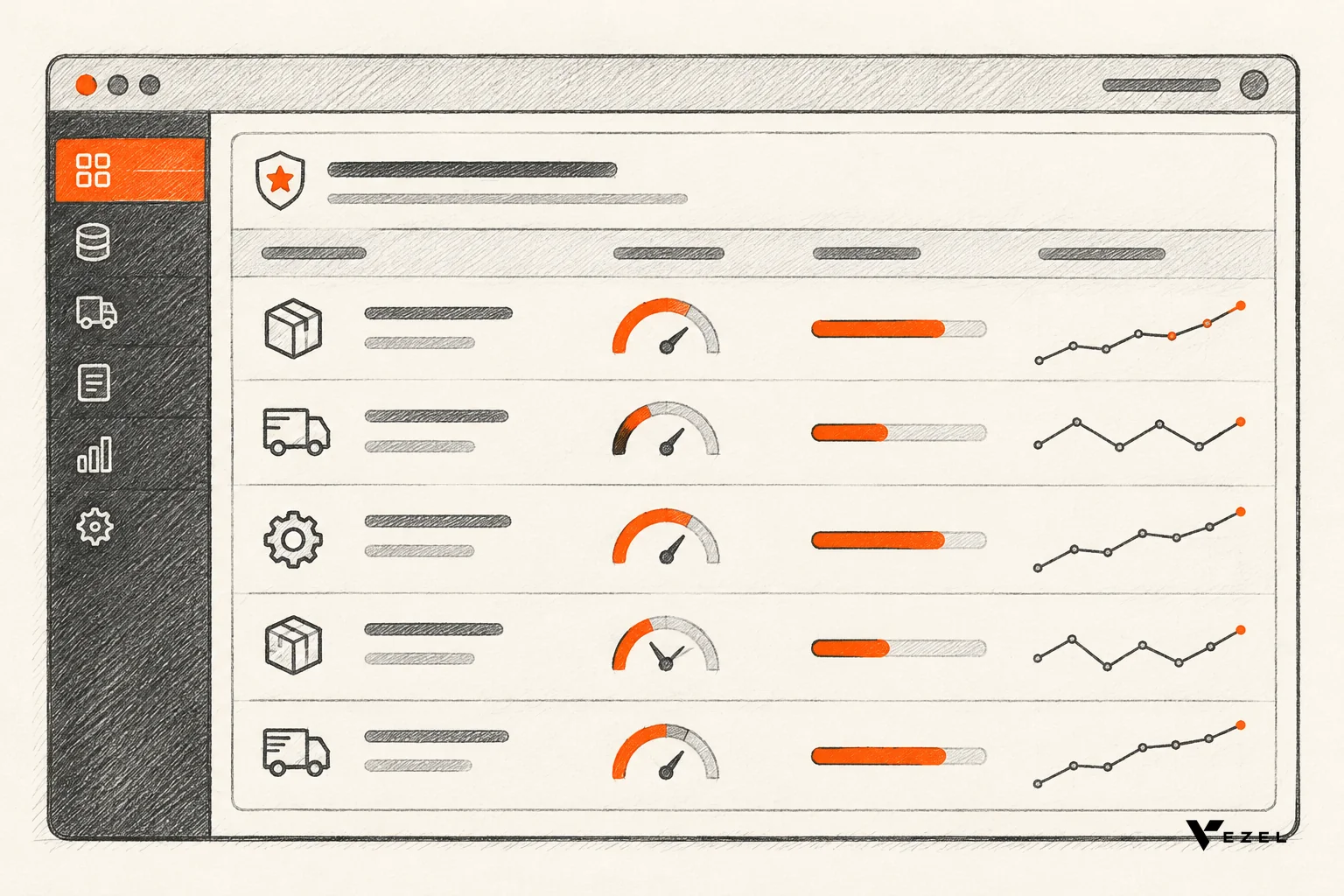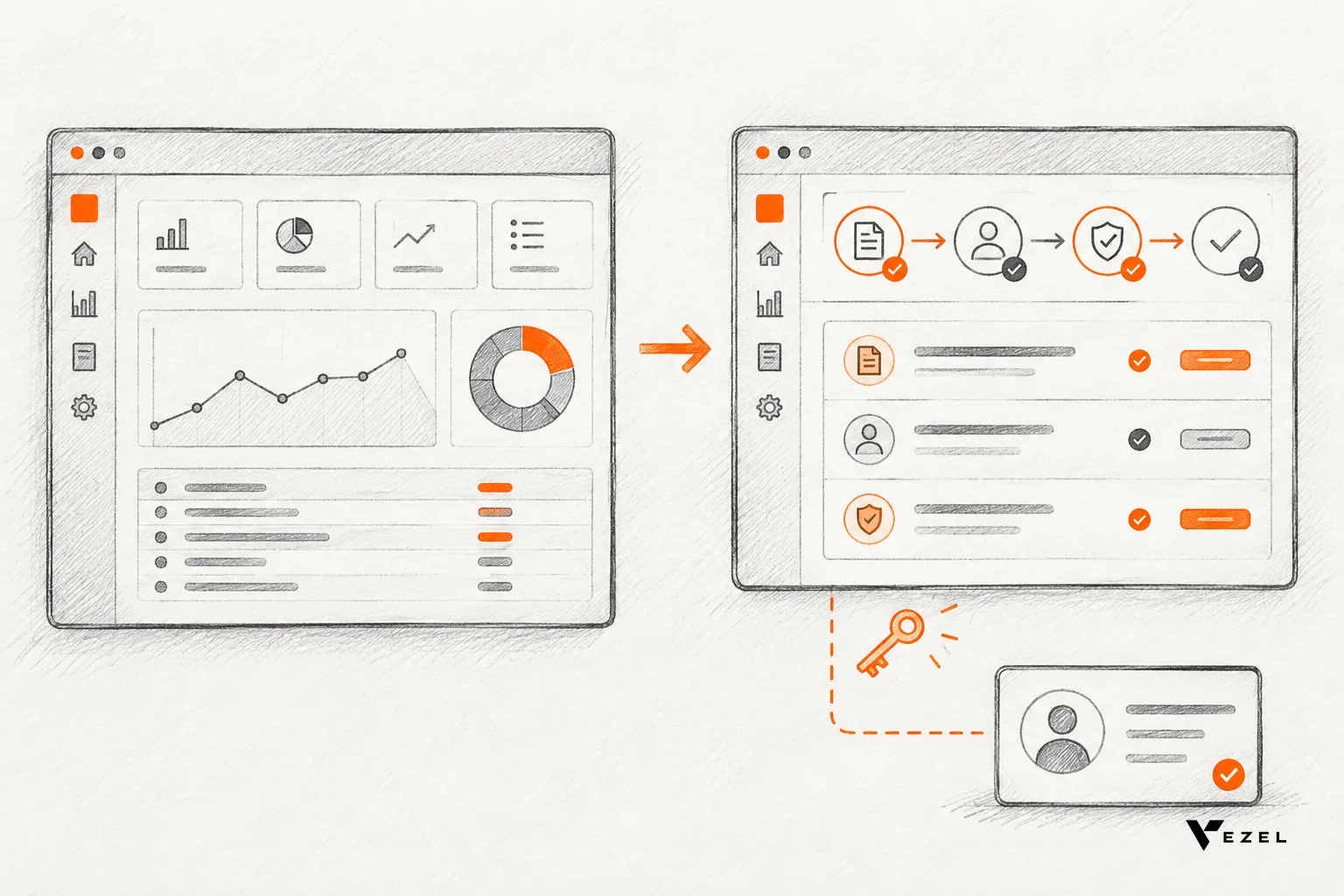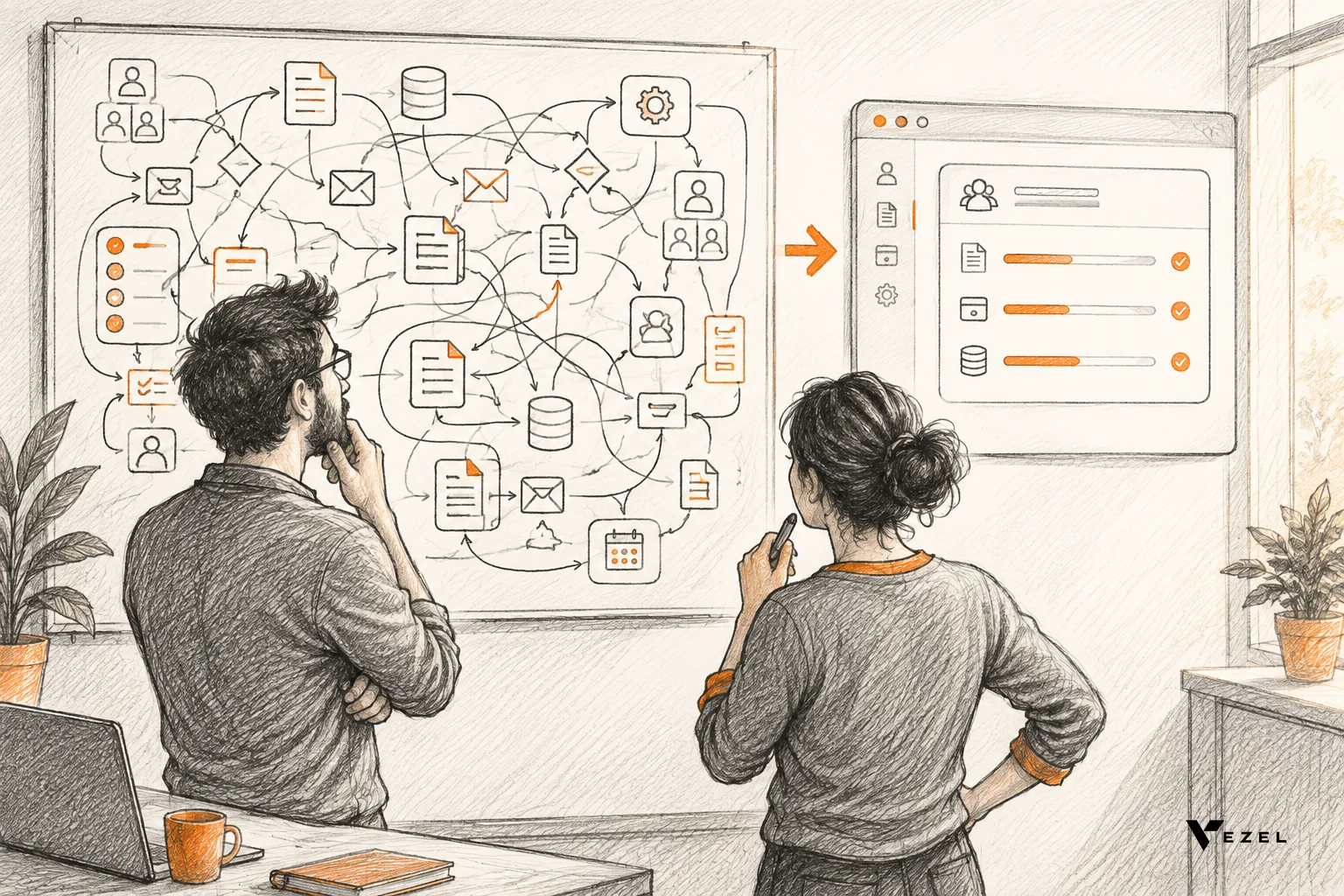



A customer success team can demo a custom dashboard live by choosing one question the account cares about, preparing a demo account with role-based logins, connecting the dashboard to real data through the product's APIs, and building or adjusting it on the call. For US B2B SaaS teams, this replaces slides with working software and lets security questions be answered on screen.
Key takeaways
- Show work, not slides: a renewal or QBR stakeholder trusts what they can click, filter and question; a screenshot gives them nothing to test.
- One question per demo: pick the single decision the dashboard must support, such as which renewals are at risk, and build only that.
- Prepare the account, not a script: role-based logins, agreed data, and two rehearsals beat a polished deck.
- Answer security by demonstration: extensions inherit your existing authentication, permissions and access controls, so log in as two roles and show the difference.
- Keep a fallback: record the finished dashboard before the call so a failed connection never ends the meeting.
Live custom dashboard demo at a glance
| Stage | What you do | Pass mark |
|---|---|---|
| Choose the question | Name one decision the dashboard supports | Stakeholder can state it in one sentence |
| Prepare the account | Create demo logins for at least two roles | Each role sees different rows |
| Connect data | Link the dashboard to live product data through APIs | Numbers match the production screen |
| Run the call | Recap outcomes, build or adjust live, ask for a decision | Attendee changes one thing on screen |
| Handle security | Show inherited permissions with two roles | Buyer sees the restricted view themselves |
| Follow up | Send a recording and the next step | Owner and date agreed on the call |
Why do static slides fail on renewal and QBR calls?
Static slides fail on renewal and QBR calls because they show what happened, not what the customer can do next. Stakeholders cannot test a screenshot, ask it a follow-up question, or see their own data in it. A live dashboard answers questions as they come up, which slides cannot do.
Every customer success manager knows the moment. The deck is on screen, a finance lead asks "can we see that by region?", and the honest answer is "I'll get back to you." The call is over at that point, even if it runs another twenty minutes.
Our view comes from how Vezel frames the problem. AI assistants made software easier to talk to, but interaction is not adaptation. A chatbot can summarize feedback. It does not hand the team a dashboard they open every morning. Customers now expect the second thing, and a slide deck cannot prove it exists.
What a renewal call is actually for
A renewal demo works best as a memory aid. It reminds the stakeholder of the value already delivered, then previews one capability they have not adopted yet. That is a two-part flow: recap outcomes, then take a guided look at one thing that maps to what they said they need next.
Slides handle the recap fine. They fail the second half. Showing something the customer has never seen, running on their own account, is the only way to make a "coming soon" promise believable. Promises of roadmap features that never ship are a known reason customers leave, so a working proof carries real weight.
1. Pick the one question the dashboard must answer
The most common live-demo mistake is building a dashboard that shows everything. Start with the decision your stakeholder makes every week, then build the smallest view that supports it. If the dashboard needs a tour to explain, it is too big.
Good starting points for customer success and CRM teams include a customer health view, a renewal workspace, an executive sales review and territory planning. Each one answers a recurring question, not a one-off one. That matters, because recurring work is what justifies a persistent dashboard over a single report.
Write the question on one line before you touch the product. For example: "Which accounts renewing this quarter have falling usage and open support tickets?" If the attendees nod at that sentence, you have your scope. If they argue about it, resolve it before the call, not during.
2. How do you prepare a demo account for a live dashboard?
Prepare a demo account by creating role-based logins, loading data that matches the customer's real workflow, and agreeing which fields may appear on screen. Then rehearse the full path twice, including one deliberate wrong turn. The goal is a safe account that behaves like production without exposing another customer's information.
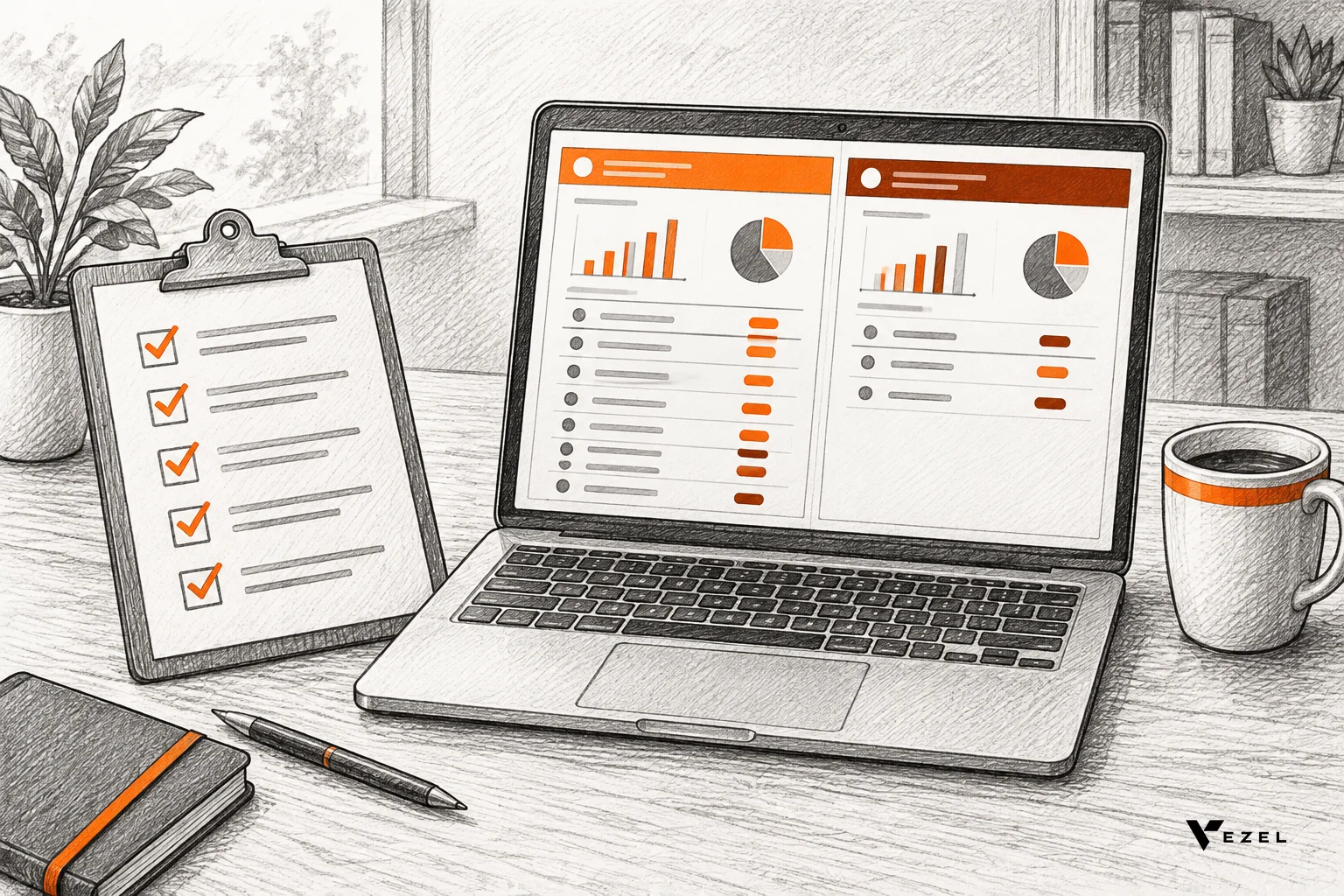
Jumping into a live production environment is risky. You might hit a bug, or worse, show one client's data to another. A purpose-built demo account removes that risk while still feeling real. Use this checklist the day before:
- Two or more roles: at least one admin and one restricted user, so you can show permissions later.
- Data that tells the story: accounts with a mix of healthy, flat and declining usage, so the dashboard has something to flag.
- Agreed fields: confirm with the customer which columns they are comfortable seeing on a shared screen.
- Clean browser profile: no stray tabs, notifications off, screen sharing tested.
- Recorded fallback: a short capture of the finished dashboard, ready to play if the connection drops.
Pass mark for rehearsal: you can reach the answer to your one question in under two minutes without hunting through menus. If you cannot, simplify the dashboard. Do not practice talking faster.
3. Connect the dashboard to real data
A demo on made-up numbers invites the question "is this real?" Connecting to the product's live data removes it. The dashboard should read from the same APIs and data models your customer's team already uses, so the figures match what they see in production.
This is where exports break down. A spreadsheet pulled last Tuesday is out of date by the call. Our guide to connecting custom dashboards to live SaaS data walks through the connection step in detail. For this demo, the short version is enough: connect through the APIs, map the fields you need, and check three numbers against the production screen before you dial in.
Vezel connects to a product's APIs and data models with a zero-footprint setup, and the owner reports that most SaaS platforms can integrate it in a few days. That means the work happens before the call, not on it. Security teams also care about the dashboard lifecycle itself; Ohio State's dashboard development lifecycle guidance notes that permissions requirements need to be understood while a dashboard is being built, not after.
Three numbers to check before every call
- A total the stakeholder already knows, such as active users or open renewals.
- One account you can verify in the production screen at the same moment.
- One filtered view, such as a single region, matched against the source.
If all three match, go. If one is off, fix the mapping and recheck. If you cannot fix it in time, use the recorded fallback and say so plainly. Customers forgive a stated limitation; they do not forgive a wrong number discovered later.
4. Run the call: a suggested running order
Treat the call as a working session, not a presentation. The running order below fits a 30-minute QBR slot. Adjust the timing to your meeting, but keep the sequence: recap first, build second, decision last.
| Minutes | Segment | What happens |
|---|---|---|
| 0-5 | Recap | Two or three outcomes the customer already achieved, with one slide at most |
| 5-8 | Frame the question | Read your one-line question aloud and ask if it is still right |
| 8-18 | Live dashboard | Show the dashboard on real data, then change one thing from a plain-English request |
| 18-23 | Permissions | Switch roles, show the restricted view |
| 23-30 | Decision | Agree who uses it, who owns it, and the next step |
The live change is the moment that sells. Ask an attendee what they would add, type or say it in plain English, and let the dashboard update in front of them. A request such as "add a column for contract end date and sort by it" is small enough to work and concrete enough to impress.
Suppose a customer success manager at a CRM vendor is on a renewal call with a VP of Sales who has complained about reporting. Instead of presenting a pipeline chart, the manager opens the VP's own account, shows a renewal workspace, and adds a column the VP asks for. The VP leaves with something they touched, not something they were told about.
For a similar approach aimed at sales cycles rather than renewals, see how teams demo custom workflows during a sales cycle without writing code.
5. How do you handle security and permission questions live?
Answer security and permission questions by showing, not claiming. Vezel extensions inherit your existing authentication, permissions and access controls, so a dashboard shows each user only what that user can already see. Log in as two different roles on the call and let the buyer watch the same dashboard change.
Someone on the customer side will ask. Usually it is an IT lead or compliance manager, and the question is usually some version of "who can see this?" Do not defer it to a follow-up email. The live moment is when trust is won or lost.
Fresno State's dashboard deployment methodology makes the same point from the build side: security rules must be set so a dashboard shows each user the appropriate information. Your demo should prove that rule is in force.
The two-role proof
Open the dashboard as the admin. Point out a row or total that only that role should see. Then switch to the restricted login and reload. The row is gone or the total is smaller. No explanation needed; the buyer saw it.
Questions to have ready
- "Does this create a second login?" No. The extension inherits your existing authentication.
- "Can someone see data they can't see today?" Extensions inherit your permissions and access controls, so they cannot, and the two-role demo shows it.
- "Who approves what goes live?" Publishing, permissions, approvals and the extension lifecycle are managed from a central control plane.
- "Does it look like our product?" Extensions are white-labeled and look like a native part of the product.
Stay inside those facts. If someone asks about a certification, a data-residency rule or a specific audit control, say you will confirm it in writing. Inventing an answer on a call is the fastest way to lose a security reviewer.
Live demo options compared
Not every call needs the same format. This comparison shows where each approach works and where it breaks, so you can choose by stakes and by how much time you have.
| Option | Uses real data? | Answers permission questions? | Best for | Weakness |
|---|---|---|---|---|
| Slide deck | No | No | Outcome recap | Nothing to test or question |
| Screenshots or recording | Past data | No | Fallback and follow-up | Cannot respond to a new request |
| Scripted sandbox | Sample data | Partly | First-time prospects | Generic, not the customer's workflow |
| Live custom build on demo account | Yes | Yes | Renewals, QBRs, expansion | Needs preparation and a rehearsal |
| Working proof built inside the customer's SaaS | Yes | Yes, inherited | High-stakes renewals and enterprise deals | Needs the product to be connected first |
Our recommendation: use slides only for the recap, and always carry a recording as a safety net. For any renewal where an expansion or an at-risk account is on the line, run the live build. Teams with no time to prepare should use the sandbox and be honest that it is generic. Skip the pure slide deck for anything that matters.
6. How Vezel builds the working proof inside the host product
Vezel builds the working proof inside the prospect's own SaaS product. The prospect shares a demo account, Vezel connects to its APIs, generates the extension from plain English, and runs it in a secure container using the product's own authentication and permissions, so it looks native.
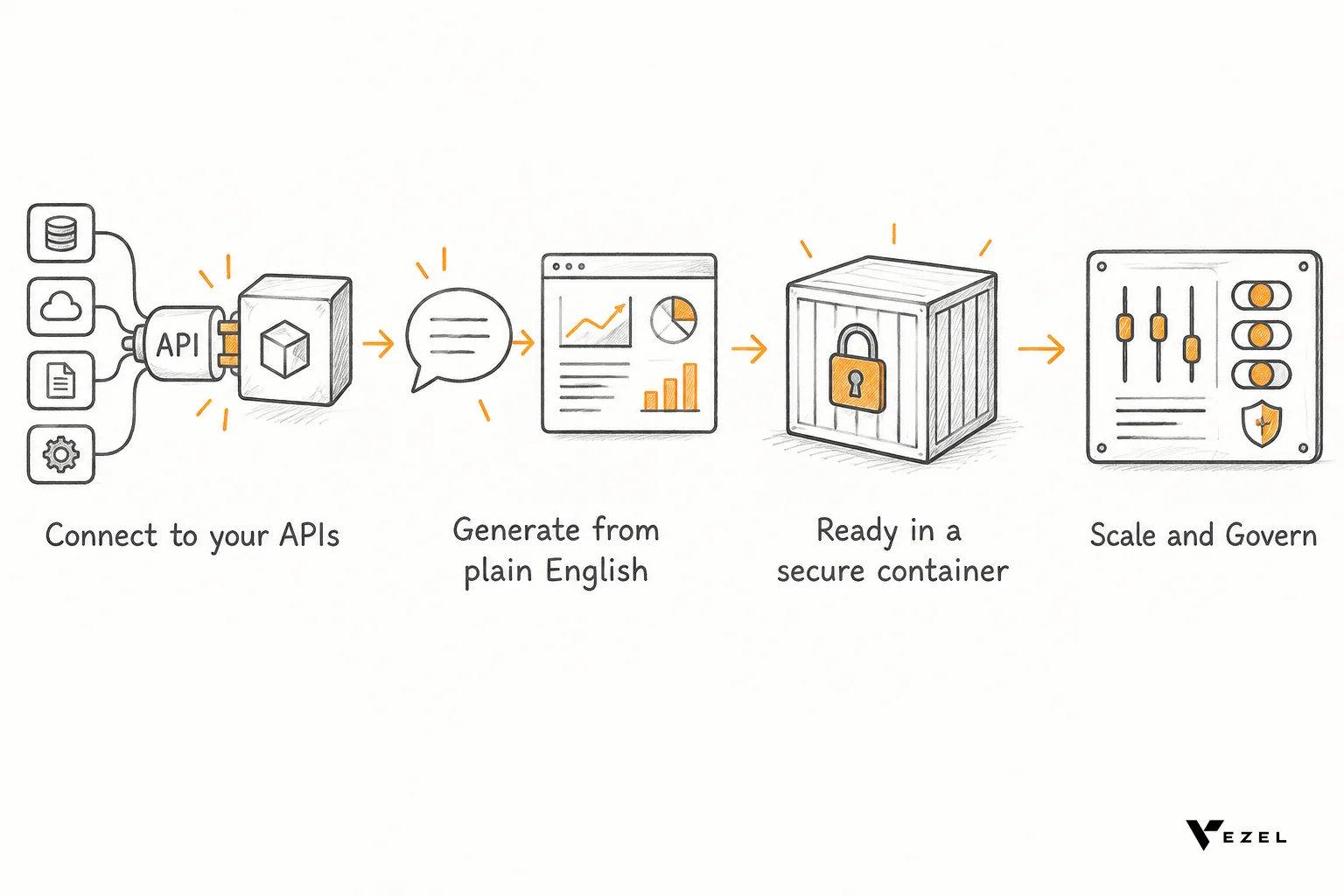
Vezel is an embedded AI extension platform. It lets customers of a SaaS product create dashboards, workflows, reports, forms, automations and AI assistants inside that product. The four steps are the same ones used for a live demo:
- Connect to your APIs. Vezel integrates with the product's APIs and data models.
- Generate extensions from plain English. Someone describes the dashboard; it is generated.
- Ready to use in a secure container. The extension runs inside the product's own security model.
- Scale and govern. A central control plane manages publishing, permissions and approvals.
For customer success teams, the examples we see most are customer health dashboards, renewal workspaces, executive sales reviews and territory planning. The same approach works for ERP procurement approvals, supplier scorecards, onboarding journeys and technician scorecards. Our practical guide on reducing churn with embedded dashboards covers the retention side.
Flexibiz, an ERP for the packaging industry, shows the idea in practice. It brings AI-powered dashboards into the ERP, so users create and explore dashboards inside the product instead of exporting to Excel. DealDrive and OrbitShift are other products shown in Vezel demos.
If you want to see this on your own product, book a demo with Vezel, share a demo account, and we will build a working proof around the workflow your customers keep asking for.
Mistakes to avoid and what to do when the demo breaks
Most failed live demos share the same few causes. Fix these in rehearsal and the call mostly takes care of itself.
- Too many dashboards: one question, one view. Extra tabs invite rabbit holes.
- Vague requests: "make it better" generates something vague. Say "show renewals in the next 90 days, sorted by usage drop."
- Skipping the data check: a single wrong number undermines every other number on screen.
- Letting the attendee drive scope: take their idea, build one small change, and park the rest for follow-up.
- No fallback: if the connection fails, say so, play the recording, and offer a rescheduled live session within the week.
One thing is genuinely unsettled: how much of the build to do live versus beforehand. Building from scratch in front of a customer is more persuasive but riskier. Our default is to prebuild the base view and build only the last change live. Teams with strong rehearsal habits can go further; teams new to this should not.
FAQ
How long should a live dashboard demo take on a QBR call?
Plan on about ten to fifteen minutes of live dashboard time inside a 30-minute QBR, plus five minutes for permissions. Keep the recap short. If the dashboard needs more than fifteen minutes of explanation, the scope is too wide and should be cut to one question.
Should the customer success manager or a sales engineer run the demo?
The person who knows the account best should run it. That is usually the customer success manager on a renewal. Bring a sales engineer or solutions lead for security and integration questions, so the manager can stay focused on the customer's outcomes.
Can we use the customer's real data in a demo?
Yes, if the customer agrees and the demo account is set up with proper permissions. Confirm which fields may appear on a shared screen beforehand. Never show one customer's data to another, which is why a dedicated demo account is safer than a production login.
What if a customer asks for something the dashboard can't do yet?
Say so, write down the request, and tell them when you will come back with an answer. Where it is a small change, try it live in plain English. If it fails, move on calmly; an honest limit costs less than a bluffed feature.
Run your next renewal call on working software
Slides tell a customer what you did. A live dashboard on their own data shows them what they can do next, and it lets you answer permission questions with a screen instead of a promise. That is the difference between a renewal that drifts and one that moves.
Ready to try it on your product? Book a demo and share a demo account, and Vezel will create a working proof inside your SaaS, using your APIs, authentication and permissions. You can also email hello@vezel.ai; we respond within 1-2 business days. Our teams work from San Carlos, California and Noida, India, supporting SaaS vendors across the United States and other English-speaking markets.